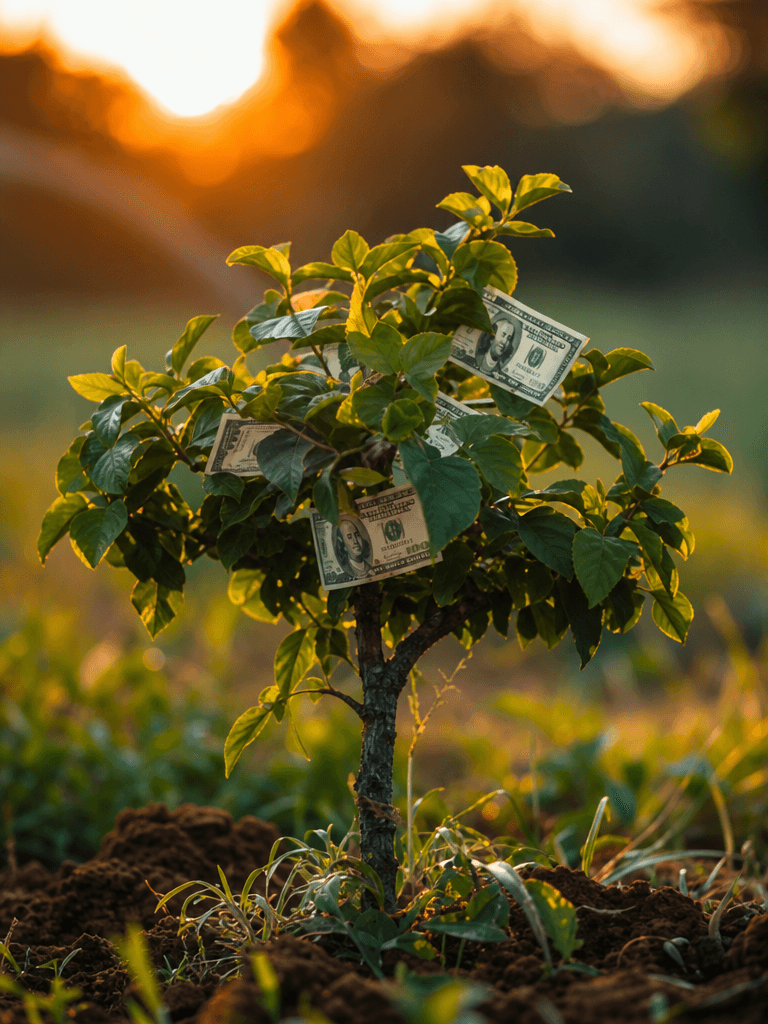
It turns out that money does grow on trees.
How to Build a BOM That Helps You Grow
Everyone knows money doesn't grow on trees, but saving money is exactly what a BOM is for. You can use a BOM to see all the components of every dish, including exactly which raw materials are required and the quantities of each one.
It also helps you track the quantity of each ingredient you need and its impact on the cost of the dish. Yes, a BOM prices out every drop of ketchup on a burger and every squirt of whipped cream on a cake.
How does it work exactly? We went out to make a BOM for a schnitzel in challah." To keep the example simple, we left out the Matbucha.
BMO for Schnitzel in Challah:
200g chicken breast
50g bread crumbs
1 egg
1⁄2 tsp ground black pepper
1⁄2 tsp crushed granulated garlic
Plating the Dish:
2 slices of challah
10g pickles
1 tbsp mayonnaise
From Ingredients to Calculations:
Assign a price to every ingredient.
Remember that tablespoon of mayo? Do you know how to price it? Now see if you can calculate how many jars of mayonnaise are needed for 100 servings of schnitzel in challah.
So we’ve seen that accurate cost calculation helps you price your menu perfectly.
But it also allows you to control inventory properly without unnecessarily overloading your storage area. To do this, you'll need to calculate your sales volume for each dish; then you’ll know exactly how much available stock you need for every ingredient.
This helps you maintain a tight ordering cycle, manage cash flow correctly, and keep products fresh.
Want to see what a BMO looks like?
We’ve prepared two demonstrations for you:
Setting up a BMO in-Zestt
Setting up a BMO in Excel